






Desktop support interview questions test how well candidates understand Windows operating systems, computer hardware, networking, Active Directory and everyday IT troubleshooting. Interviewers may ask you to explain technical concepts, demonstrate commands or describe how you would resolve a problem reported by an employee.
For entry-level desktop support positions, questions often focus on IP addresses, DNS, DHCP, operating systems, printers, user accounts and basic troubleshooting. More experienced candidates may face questions about Group Policy, domain controllers, endpoint administration, access permissions and incident escalation.
This article covers 50 desktop support interview questions and answers for 2026, organised into basic technical concepts, networking, Windows and hardware, advanced support, practical troubleshooting and HR interviews. The answers explain the underlying concepts and include examples where these help clarify how a technology works.
These are preparation questions, not a verified question paper from a particular employer. Revise the sections relevant to your vacancy and be ready to explain which technologies you have actually used, whether through work experience, internships, laboratory exercises or personal projects.
Desktop Support Interview 2026: Key Highlights
- 50 interview questions: Windows, networking, hardware, Active Directory, troubleshooting and HR discussions.
- For freshers: Concentrate on operating systems, hardware components, IP configuration, DNS, DHCP and common Windows commands.
- For experienced candidates: Prepare examples involving incident investigation, domain administration, access management, endpoint security and escalation.
- Important commands: ping, ipconfig, nslookup and tracert, along with Windows administration and diagnostic utilities.
- Interview preparation: Explain your troubleshooting process, document what you have tried and describe how you verify that an issue is resolved.
What Does a Desktop Support Engineer Do?
A desktop support engineer helps employees and other authorised users resolve problems with computers, laptops, operating systems, applications, printers and network access. The role involves diagnosing technical issues, restoring normal device operation and helping users work with the organisation’s IT systems.
Desktop support teams may work on-site, remotely or through a combination of both. In larger organisations, they often coordinate with network administrators, system administrators, information security teams and application support specialists when an issue cannot be resolved at the endpoint level.
Common responsibilities include:
- Installing and configuring desktops, laptops, operating systems and approved applications.
- Diagnosing hardware, software, printer and network connectivity problems.
- Assisting users with login errors, password issues and access requests within authorised permissions.
- Checking device health, software updates and endpoint security alerts.
- Recording incidents, maintaining troubleshooting notes and updating support tickets.
- Escalating unresolved issues to the appropriate specialist team with relevant diagnostic information.
The exact responsibilities depend on the company’s IT environment. A desktop support engineer in a small office may handle a wide range of device and network problems, while an engineer in a large enterprise may work within a defined support queue and escalation process.
L1, L2 and L3 Desktop Support: What’s the Difference?
Many organisations divide IT support into levels according to the complexity of issues and the technical expertise required. These classifications are not identical across every employer.
| Support Level | Typical Responsibilities | Example |
|---|---|---|
| L1: First-Line Support | Initial diagnosis, common user problems, approved routine fixes and ticket documentation | Helping a user reset a password or investigate a printer connection |
| L2: Technical Support | More detailed troubleshooting involving operating systems, applications, endpoint configuration and recurring issues | Investigating a persistent Windows profile error or domain login failure |
| L3: Specialist Support | Complex incidents requiring advanced expertise, infrastructure knowledge or specialist-level changes | Investigating a widespread endpoint configuration failure with an infrastructure team |
For an L1 desktop support interview, expect questions about identifying symptoms, collecting information, applying approved fixes and communicating with users. L2 interviews may examine deeper diagnosis and system administration. L3 responsibilities frequently overlap with specialist endpoint, systems or network engineering teams.
An effective support engineer also knows when to escalate an issue. Repeatedly attempting fixes without checking permissions, business impact or security implications can make a problem worse.
Qualifications for Desktop Support Engineer Jobs
Educational requirements vary by employer and position. Desktop support vacancies may accept candidates with a diploma, undergraduate degree or relevant technical experience, depending on the responsibilities involved.
Common educational backgrounds include Computer Science, Information Technology, Computer Applications and Electronics. Some entry-level employers may also consider candidates from other disciplines who can demonstrate suitable technical knowledge and hands-on troubleshooting ability.
For freshers, practical experience can come from configuring Windows computers, replacing compatible hardware, setting up a small network, installing software or resolving problems during an internship or technical project. Be prepared to describe what you did and how you confirmed that the system worked correctly afterwards.
Certifications Relevant to Desktop Support
Professional certifications and structured technical training can support your preparation, particularly when you have limited workplace experience. Their value depends on the technologies used in the role.
| Certification or Training | Relevant Knowledge |
|---|---|
| CompTIA A+ | Computer hardware, operating systems, networking fundamentals, troubleshooting and security |
| Google IT Support Professional Certificate | Technical support fundamentals, networking, operating systems and system administration concepts |
| Microsoft endpoint administration training | Windows device management, Microsoft Intune, endpoint configuration and enterprise support concepts |
| Networking fundamentals training | TCP/IP, IP addressing, DNS, DHCP, routing and network diagnostics |
These options serve different purposes. CompTIA A+ is a professional certification, whereas the Google IT Support programme is a professional certificate. Microsoft training and networking courses should be selected according to the current learning path, certification requirements and job description.
None of these qualifications is mandatory for every desktop support position. Employers may place considerable weight on your ability to troubleshoot a real problem, explain technical concepts accurately and follow workplace IT procedures.
Skills Required for a Desktop Support Engineer
Desktop support engineers need technical knowledge, a systematic approach to troubleshooting and the ability to communicate with employees who may not understand IT terminology. The skills required depend on the organisation’s systems and whether the position involves L1, L2 or specialist support.
Technical Skills
Employers commonly assess the following technical skills during desktop support interviews:
- Windows administration: Installing and configuring operating systems, managing device drivers, checking updates, investigating startup failures and troubleshooting user profiles.
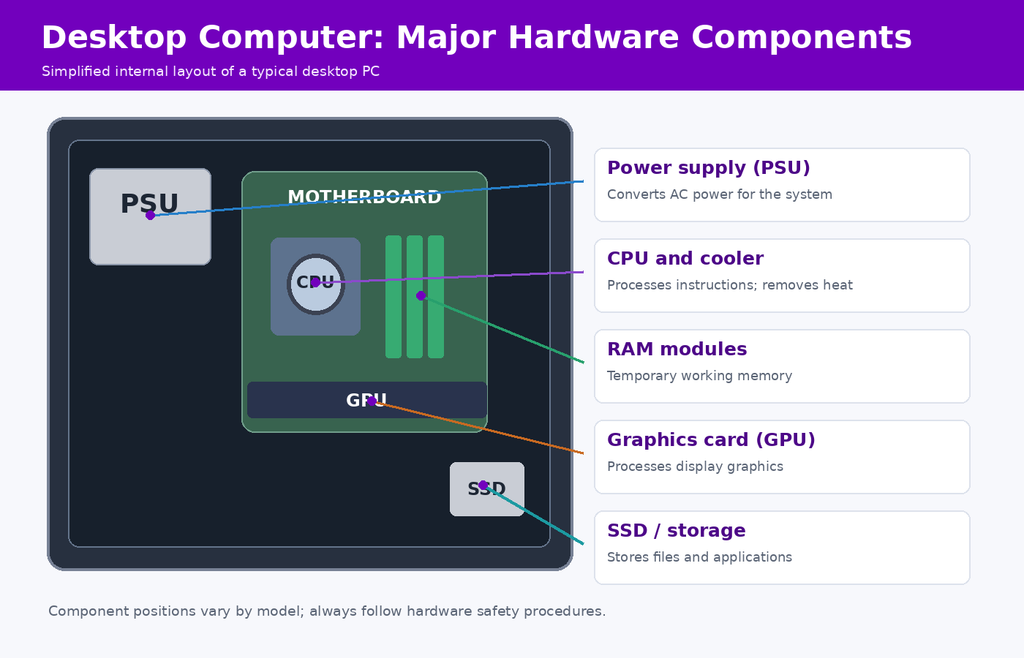
- Computer hardware: Identifying problems involving RAM, SSDs, hard drives, processors, power supplies, displays and peripherals, and understanding when replacement or repair is necessary.
- Networking: Understanding IPv4 and IPv6 addressing, subnet masks, DNS, DHCP, default gateways, Ethernet and Wi-Fi connectivity.
- Active Directory: Working with domain user accounts, security groups, password resets, account lockouts and Group Policy within authorised administrative permissions.
- Microsoft 365 and business applications: Diagnosing Outlook sign-in problems, application installation failures, licensing issues and software configuration errors.
- Diagnostic utilities: Using commands such as
ping,ipconfig,nslookupandtracert, along with tools such as Task Manager, Device Manager and Event Viewer. - Remote support and ticketing: Using approved remote assistance tools, documenting incidents, tracking service requests and escalating unresolved problems.
- Endpoint security: Understanding software updates, malware protection, access controls, device encryption and the importance of following IT security procedures.
A candidate does not need administrator-level experience with every technology listed above. For an entry-level position, employers may place greater emphasis on troubleshooting fundamentals and the ability to learn the tools used by the support team.
Soft Skills
Desktop support work also involves handling requests from users, coordinating with other IT teams and communicating during service interruptions. Important skills include:
- Communication: Explaining a technical issue in language the user understands and providing clear instructions.
- Problem-solving: Collecting symptoms, identifying possible causes, testing appropriate fixes and confirming the result.
- Patience: Helping users who may be frustrated or unfamiliar with the technology they are using.
- Prioritisation: Assessing incidents according to their urgency, business impact and applicable service-level agreements (SLAs).
- Documentation: Recording useful troubleshooting details so colleagues can understand the issue and continue the investigation if necessary.
- Teamwork: Coordinating with infrastructure, security and application teams when a problem extends beyond desktop support.
In an interview, be prepared to describe a specific problem you investigated, including the symptoms, checks performed, solution and outcome. Freshers can use practical laboratory exercises or personal projects, provided they explain that these were not workplace incidents.
50 Desktop Support Interview Questions and Answers
The questions are arranged by subject and difficulty. Start with operating systems and basic networking, then move to Windows administration, Active Directory, troubleshooting scenarios and HR questions. The answers reflect common IT practices, but exact procedures may differ by operating system version and employer policy.
Basic Desktop Support Interview Questions (1–10)
1. What is an operating system, and which operating systems have you worked with?
Answer: An operating system (OS) manages a computer’s hardware resources, memory, running processes, files and applications. It provides the services that software needs to operate and allows users to interact with the device.
Common operating systems include Microsoft Windows, Linux and macOS. In enterprise desktop support, Windows administration is frequently relevant because organisations use it for employee workstations, business applications and domain-based device management.
Interview example: “I have worked with Windows 11 and have experience installing applications, configuring user settings, checking device drivers and investigating common performance problems. I have also used basic Linux commands during my technical training.”
Adjust this example to reflect your actual experience. Do not claim experience with an operating system solely because you have studied its features.
2. What is the ping command used for?
Answer: The ping command sends Internet Control Message Protocol (ICMP) echo requests to a network destination and reports whether echo replies are received. It helps test basic IP connectivity and measure round-trip response times.
For example, on Windows, you can run:
ping 8.8.8.8
ping example.com
The first command tests whether the specified IP address responds to ICMP. The second also requires the hostname to be resolved, making it useful when investigating possible DNS issues.
Interview tip: A failed ping does not necessarily mean the destination is offline. Firewalls, network settings or the destination itself may block ICMP echo requests. Ping alone cannot confirm that a website, application or specific TCP service is working.
3. What port number does FTP use?
Answer: File Transfer Protocol (FTP) commonly uses TCP port 21 for its control connection. In traditional active-mode FTP, TCP port 20 is used for the server-side data connection. Passive-mode FTP uses a separately negotiated port for data transfer.
| Protocol | Common Port | Purpose |
|---|---|---|
| FTP | TCP 21 | FTP control connection |
| SFTP | TCP 22 | File transfer over SSH |
| FTPS | TCP 21 or 990, depending on the mode | FTP secured with TLS |
Traditional FTP does not encrypt credentials or file contents by default. Organisations should use an approved secure file-transfer method when handling sensitive information.
Interview tip: SFTP and FTPS are different technologies. SFTP uses SSH, while FTPS extends FTP with TLS. Do not treat them as interchangeable names for the same protocol.
4. What is cache memory, and why is it important?
Answer: CPU cache memory is high-speed memory that stores frequently or recently accessed data and instructions. It reduces the time the processor spends waiting for information from main memory.
Modern processors commonly use several cache levels:
- L1 cache: Usually small and very fast, located close to the processor’s execution units.
- L2 cache: Generally larger than L1, providing another level of frequently accessed information.
- L3 cache: Often shared by multiple CPU cores and typically larger than the lower cache levels.
Cache size, organisation and performance vary by processor design. CPU cache is different from browser cache and disk cache, even though all three involve keeping data available for faster access.
5. What is Active Directory?
Answer: Active Directory Domain Services (AD DS) is Microsoft’s directory service for managing users, computers, groups and other objects in a Windows domain environment.
It supports centralised authentication and access management. Domain administrators can also use Group Policy to manage many configuration and security settings across supported computers and user accounts.
For example, when an employee signs in to a domain-joined computer, the organisation’s directory infrastructure may participate in verifying the account and applying the relevant access policies.
Common desktop support tasks: Checking whether a user account is locked, resetting a password after verifying the user’s identity, reviewing authorised group membership and investigating domain sign-in problems.
Interview tip: Active Directory Domain Services and Microsoft Entra ID are different identity platforms. Be prepared to explain whether you have worked with on-premises domain accounts, cloud identities or a hybrid environment.
6. Can you convert a basic disk into a dynamic disk in Windows?
Answer: On compatible Windows systems, the legacy Disk Management functionality supports converting certain basic disks to dynamic disks. The Disk Management console can be opened with:
diskmgmt.mscA basic disk normally uses standard partitioning, while dynamic disks historically supported volume configurations such as spanned, striped and mirrored volumes, subject to Windows edition and system limitations.
Dynamic disks are deprecated for general modern Windows storage use. Microsoft recommends using basic disks or newer technologies such as Storage Spaces where appropriate. Conversion should not be treated as a routine performance improvement.
Before making storage changes, check the operating system, partition layout, existing volumes and application dependencies. Back up important data and obtain the required approval. Some changes or attempts to convert a dynamic disk back to a basic disk can require deleting volumes and can result in data loss.
Interview tip: Explain the historical capability, but make it clear that modern storage recommendations and compatibility requirements must be considered before performing the operation.
7. How can you back up emails in Microsoft Outlook?
Answer: In classic Outlook for Windows, supported mailbox content can be exported to an Outlook Data File (.pst). The usual steps are:
- Open classic Outlook for Windows.
- Select File > Open & Export > Import/Export.
- Choose Export to a file, followed by Outlook Data File (.pst).
- Select the mailbox or folders to export, including subfolders if needed.
- Select the destination, review the export options and complete the process.
These steps do not apply identically to every Outlook version. The new Outlook for Windows has different features and limitations, and an organisation may restrict exports or use centralised retention, recovery and backup systems.
Important distinction: Exporting selected mailbox content to a PST file is not equivalent to a complete organisational Microsoft 365 backup strategy. Mailbox recovery, retention and business continuity depend on the services and policies configured by the employer.
Interview tip: For company accounts, check whether the export is authorised and how the resulting file must be stored. Mailboxes may contain confidential information that should not be copied to an unmanaged personal device.
8. What is a group in Active Directory?
Answer: An Active Directory group is a directory object used to manage collections of accounts and, where applicable, assign access permissions or distribute messages.
Two common group types are:
- Security groups: Used to assign permissions to resources such as shared folders and other secured objects.
- Distribution groups: Primarily intended for distributing email messages and not for assigning security permissions.
Active Directory security groups also have scopes, including domain local, global and universal. The scope affects where a group can be used and which members it can contain.
Example: Rather than individually granting 20 employees access to a shared departmental folder, an administrator can assign appropriate permissions to a security group and manage approved members through that group.
Interview tip: Access should be assigned according to the organisation’s authorisation procedures and least-privilege principles. Desktop support staff should not add users to privileged groups without approval.
9. What is an IP address?
Answer: An Internet Protocol (IP) address is an address assigned to a network interface for communication over an IP network. It helps devices send and receive data across local or interconnected networks.
| Version | Address Size | Example |
|---|---|---|
| IPv4 | 32 bits | 192.168.1.10 |
| IPv6 | 128 bits | 2001:db8::1 |
An address may be assigned manually through static configuration or obtained automatically through mechanisms such as DHCP. IPv6 also supports other address configuration methods.
IP addresses can be public or private, depending on their range and use. For example, 192.168.1.10 is a private IPv4 address. Private addresses can be reused on separate private networks and are not normally routed directly across the public internet.
Interview tip: Be prepared to explain why IP address, subnet mask or prefix length, default gateway and DNS configuration all matter when troubleshooting connectivity.
10. What is DNS, and how does it work?
Answer: DNS (Domain Name System) is a distributed naming system that helps devices find information associated with domain names. One of its most familiar functions is resolving website hostnames to IP addresses.
For example, when a user enters a website address, the device may query a DNS resolver. If the answer is not already cached, the resolver can obtain the required information through the DNS hierarchy and return the appropriate record.
Common DNS record types include:
- A: Associates a hostname with an IPv4 address.
- AAAA: Associates a hostname with an IPv6 address.
- CNAME: Defines an alias to another domain name.
- MX: Identifies mail exchange servers for a domain.
- PTR: Supports reverse DNS lookups from an IP address to a domain name.
On Windows, a desktop support engineer can use commands such as:
nslookup example.com
ipconfig /displaydns
ipconfig /flushdns
nslookup can help check DNS responses, while ipconfig /displaydns shows locally cached resolver entries. The ipconfig /flushdns command clears the Windows DNS resolver cache and may be useful when investigating certain stale-resolution problems.
Interview tip: If a website opens using an IP address but not its hostname, DNS is one possible cause. However, website hosting configuration, HTTPS certificates, proxies and other network settings may also affect the outcome. Diagnose the actual failure before changing DNS settings.
Networking Interview Questions for Desktop Support (11–20)
Networking problems are common in desktop support, from computers losing internet access to employees being unable to connect to shared resources or company applications. These questions test whether you understand how networks operate and can use that knowledge to investigate connectivity problems.
11. What is a default gateway?
Answer: A default gateway is the router or next-hop address a device uses to send IP traffic when its routing table does not contain a more specific route to the destination.
For example, a Windows computer may have the following configuration:
IPv4 Address:     192.168.1.25
Subnet Mask:      255.255.255.0
Default Gateway:  192.168.1.1
In this example, the computer can communicate directly with other reachable devices on its local subnet. Traffic intended for a different network is normally forwarded towards the default gateway, provided no more specific route applies.
Troubleshooting example: If an employee can access local computers but cannot reach resources on another network, check the default gateway using ipconfig /all. Then verify the gateway address, network connection and routing configuration.
A missing or incorrect default gateway can prevent access to remote networks. However, internet failures may also involve DNS, routing, firewall policies or upstream network services.
12. What is the difference between LAN and WAN?
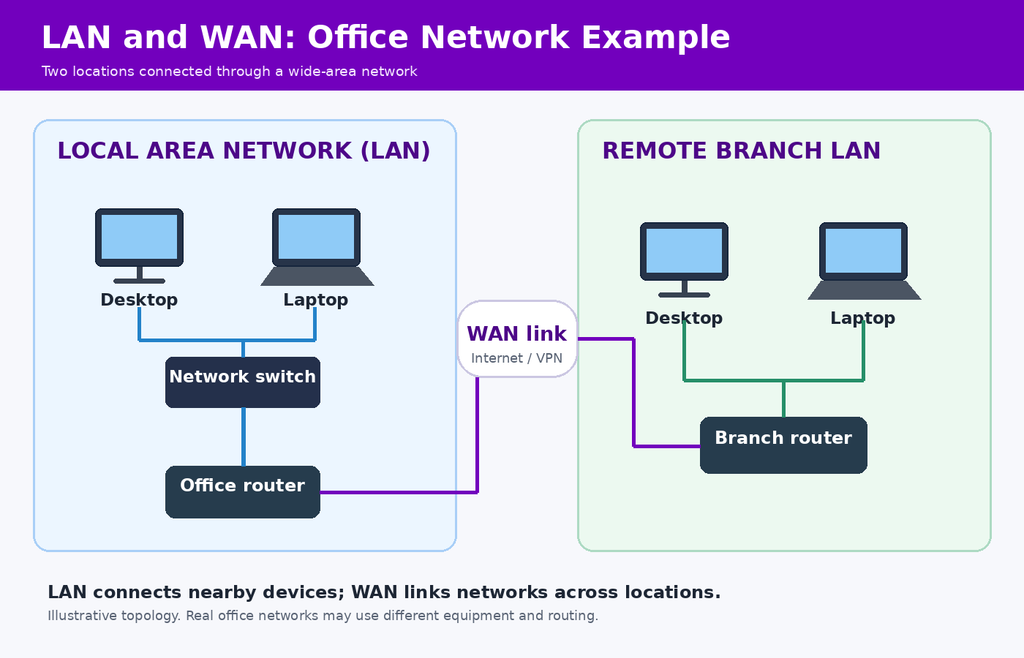
Answer: A Local Area Network (LAN) connects devices within a relatively limited area, such as an office or building. A Wide Area Network (WAN) connects networks across larger geographical distances.
| Feature | LAN | WAN |
|---|---|---|
| Coverage | Office, building or campus | Multiple locations or geographical regions |
| Common Technologies | Ethernet and Wi-Fi | Leased circuits, MPLS, SD-WAN and internet-based connections |
| Typical Use | Connecting office computers, printers and local services | Connecting offices, data centres and remote locations |
| Administration | Often managed by the organisation’s local IT or network team | May involve network providers and central infrastructure teams |
Example: Computers connected to a switch within one office are part of a LAN. A company connecting its Delhi and Bengaluru offices through managed network links uses WAN connectivity.
Interview tip: Avoid claiming that every LAN is faster than every WAN. Actual speed and latency depend on network design, equipment, available bandwidth and connection quality.
13. What is a domain in Windows networking?
Answer: In an Active Directory environment, a Windows domain is a logical administrative unit containing directory objects such as users, computers and groups. It allows authorised administrators to manage accounts, authentication and certain policies centrally. In traditional Active Directory Domain Services, the forest is generally treated as the broader security boundary, while domains provide administrative and directory-replication boundaries.
Domain controllers run Active Directory Domain Services and provide directory and authentication-related services. Domain-joined computers can use domain accounts to access permitted organisational resources.
For example, an employee may sign in to a domain-joined workstation using their company account and access a shared folder according to the permissions assigned to that account.
Common support checks: If a user cannot sign in to a domain-joined computer, investigate the error message, network connectivity, DNS configuration, account status and domain controller availability. Cached sign-in credentials may allow some previously authenticated users to sign in even when a domain controller is temporarily unreachable.
Interview tip: Do not confuse an Active Directory domain with an internet domain name. They can use similar DNS naming conventions, but they serve different administrative purposes.
14. What is a child domain in Active Directory?
Answer: A child domain is an Active Directory domain created beneath a parent domain in a hierarchical DNS namespace.
For example:
Parent domain:  example.com
Child domain:   sales.example.com
These domains can belong to the same domain tree and Active Directory forest. A child domain has its own domain-level objects and administration while participating in the forest’s shared directory structure and trust relationships.
Creating a child domain is different from creating an Organisational Unit (OU). An OU is a container within an existing domain that helps organise directory objects and delegate certain administrative responsibilities. An OU does not create a separate domain.
Interview tip: If asked how organisations separate departments, explain that they may use OUs without creating additional domains. The decision depends on administrative, security and infrastructure requirements.
15. What is a PTR record in DNS?
Answer: A PTR (Pointer) record is a DNS record commonly used for reverse DNS resolution. It associates an IP address with a hostname through the relevant reverse DNS namespace.
An A record associates a hostname with an IPv4 address, while a PTR record supports lookup in the opposite direction.
| Record | Purpose | Example |
|---|---|---|
| A | Hostname to IPv4 address | pc1.example.com → 192.0.2.25 |
| PTR | IP address to hostname | 192.0.2.25 → pc1.example.com |
Reverse DNS is used in diagnostics, server identification and some email infrastructure checks. An IP address may have no PTR record, and a PTR result does not by itself prove that the corresponding computer is reachable.
Windows troubleshooting example: Run nslookup 192.0.2.25 to attempt a reverse lookup. The result depends on the relevant DNS records and resolver configuration.
16. What is DHCP, and which ports does it use?
Answer: Dynamic Host Configuration Protocol (DHCP) allows devices to obtain network configuration information automatically. Depending on the setup, this can include an IP address, subnet mask or prefix information, default gateway and DNS server addresses.
| Protocol | Server Port | Client Port |
|---|---|---|
| DHCPv4 | UDP 67 | UDP 68 |
| DHCPv6 | UDP 547 | UDP 546 |
For DHCPv4, the initial address allocation process is commonly explained through four messages:
- Discover: The client looks for an available DHCP server.
- Offer: A server offers suitable configuration information.
- Request: The client requests the offered configuration.
- Acknowledge: The server confirms the allocation.
This is commonly called the DORA process. Actual DHCP traffic also includes other message types and renewal procedures.
Troubleshooting example: A Windows computer that cannot obtain a DHCPv4 address may assign itself an address in the 169.254.0.0/16 link-local range. Check the cable or Wi-Fi connection, DHCP server availability, VLAN configuration and authorised network settings.
ipconfig /all
ipconfig /release
ipconfig /renew
Use release and renew operations only when appropriate because they can temporarily interrupt connectivity. They also do not resolve every DHCP problem, particularly when the underlying network or DHCP service is unavailable.
17. What are Operations Master roles in Active Directory?
Answer: Active Directory Domain Services uses five specialised Flexible Single Master Operations (FSMO) roles. These roles assign particular directory operations to designated domain controllers rather than allowing every domain controller to perform them independently.
| FSMO Role | Scope | Primary Responsibility |
|---|---|---|
| Schema Master | Forest | Coordinates changes to the Active Directory schema |
| Domain Naming Master | Forest | Handles adding and removing domains and certain directory partitions |
| RID Master | Domain | Allocates relative identifier pools to domain controllers |
| PDC Emulator | Domain | Supports password-change coordination, time synchronisation and other designated functions |
| Infrastructure Master | Domain | Maintains specified cross-domain object references |
There are two forest-wide roles and three domain-wide roles. An Active Directory forest has one Schema Master and one Domain Naming Master. Each domain has its own RID Master, PDC Emulator and Infrastructure Master.
Interview tip: FSMO responsibilities are more relevant to advanced Windows Server and Active Directory interviews than routine L1 desktop troubleshooting. A desktop support engineer may need to identify an issue involving domain services but should not transfer or seize FSMO roles without the necessary authority and specialist knowledge.
18. What are the common Microsoft Office applications?
Answer: Common Microsoft Office and Microsoft 365 applications include:
- Microsoft Word: Creating and editing documents.
- Microsoft Excel: Working with spreadsheets, formulas and data.
- Microsoft PowerPoint: Preparing presentations.
- Microsoft Outlook: Managing email, calendars and related communication features.
- Microsoft OneNote: Organising notes and information.
- Microsoft Access: Working with desktop databases, where the application is available.
Microsoft Teams is also widely used alongside Microsoft 365 applications for workplace communication and collaboration. Application availability and licensing depend on the organisation’s plan and configuration.
Common support issues: Users may report Outlook profile errors, Microsoft 365 activation problems, application crashes, missing add-ins or difficulty opening documents stored in OneDrive or SharePoint.
Interview tip: Mention which applications you have actually supported. Familiarity with Word and Excel as an end user is different from troubleshooting installations, authentication, licensing and application policies.
19. What is a bootloader?
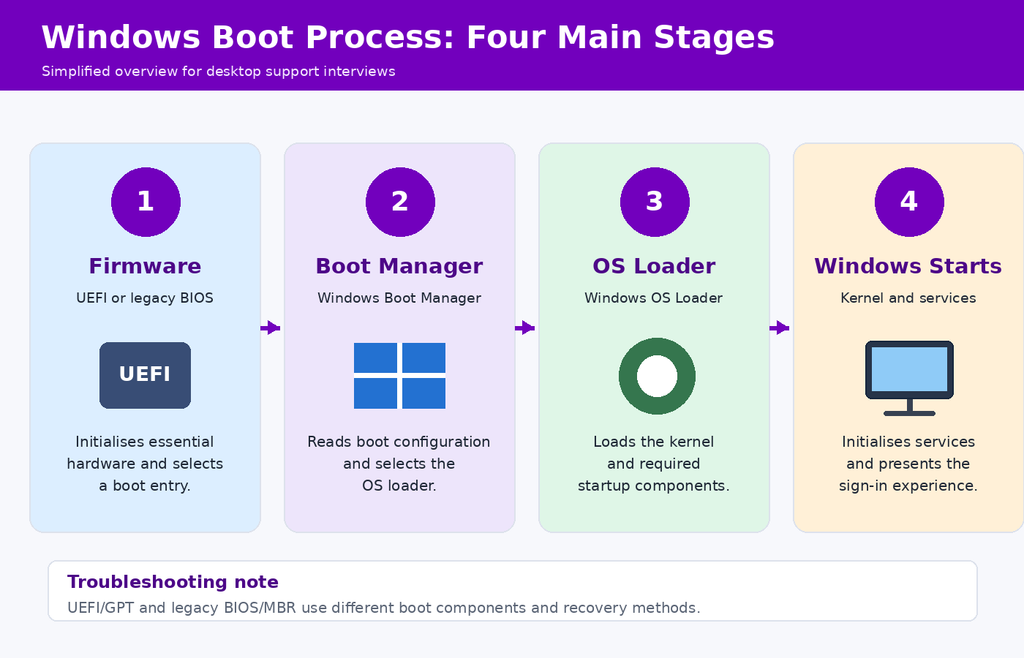
Answer: A bootloader is software involved in preparing or loading an operating system during the computer’s startup process. It works with the system’s firmware and boot configuration to start the operating system.
On Windows computers, Windows Boot Manager and the Windows OS Loader participate in the boot process. Modern systems commonly use UEFI firmware and an EFI System Partition, while older configurations may use legacy BIOS and an MBR-based boot process.
If important boot configuration files become corrupted or inaccessible, Windows may fail to start even when the storage device is detected.
Troubleshooting example: If a computer displays a boot-device or boot-configuration error, check firmware boot settings, storage detection and the relevant Windows recovery information. Identify whether the system uses UEFI/GPT or BIOS/MBR before considering repairs.
A failed boot does not always indicate a bootloader problem. Storage hardware faults, damaged operating system files and other configuration issues can produce similar symptoms.
20. What is a logical drive?
Answer: A logical drive is a storage volume that an operating system makes available for storing and accessing files. On Windows, an accessible volume is commonly identified by a drive letter such as C: or D:, although volumes can also be mounted in other ways.
A logical drive is not necessarily a separate physical disk. For example, one physical SSD can contain multiple partitions or volumes, while certain storage systems can combine capacity from more than one physical disk.
The term also has a more specific historical meaning in MBR partitioning, where logical drives can be created within an extended partition. Modern GPT partition layouts do not use that same extended-partition structure.
Windows troubleshooting example: Use diskmgmt.msc to view available disks, partitions and volumes. Before changing a partition, drive letter or volume layout, verify the storage configuration, back up important data and consider application dependencies.
Interview tip: Understand the difference between a physical disk, partition, volume and drive letter. These terms are related, but they do not always describe the same thing.
Windows and Hardware Interview Questions (21–30)
Desktop support engineers regularly investigate Windows errors, device configuration problems, hardware failures and application connectivity issues. These questions cover technical concepts and Windows utilities that candidates may encounter in L1 and L2 interviews.
21. What is bus speed in a computer?
Answer: Bus speed describes the operating rate of a communication bus that transfers information between computer components. A bus may carry data, addresses or control signals, depending on its design.
The amount of data transferred depends on several factors, including the bus frequency, transfer rate, width and protocol. Bus frequency is commonly measured in hertz, while effective data transfer rates may be expressed in transfers per second or units of bandwidth.
For example, a memory interface and a PCI Express connection use different technologies and performance measurements. A higher clock frequency alone does not necessarily mean that one interface provides greater effective bandwidth than another.
Interview tip: Distinguish clock frequency, transfer rate and bandwidth. Modern computers contain multiple interfaces, so there is no single bus-speed value that describes the performance of the entire system.
22. What is the full form of SID in Windows?
Answer: SID stands for Security Identifier. Windows uses SIDs to identify security principals such as users, groups and computer accounts when applying access controls.
For example, an NTFS folder can have an access control list containing SIDs that identify which accounts are allowed or denied specified permissions. Windows checks the relevant security identifiers and permissions when deciding whether an account can access the resource.
A user’s display name can change without changing the account’s SID. However, deleting an account and creating another account with the same name does not normally restore the original SID or its existing resource permissions.
Windows command example: On systems that support it, PowerShell can be used to inspect the SID of the current Windows identity:
[System.Security.Principal.WindowsIdentity]::GetCurrent().User.ValueInterview tip: A SID is not the same as a username or password. It is an identifier used by Windows security mechanisms, particularly when evaluating access rights.
23. How do you open Windows Mobility Center?
Answer: On a supported Windows laptop or other compatible device, open the Run dialog by pressing Windows + R, enter the following command and press Enter:
mblctr.exeWindows Mobility Center provides access to selected device settings. Depending on the computer and Windows configuration, these may include display brightness, audio volume, battery status, external displays or presentation-related settings.
The utility and individual controls are not available on every device. Hardware capabilities, Windows edition and manufacturer configuration can affect which options appear.
Interview tip: If a user reports that Mobility Center is missing, first check whether the device supports the utility. Its absence does not automatically indicate that Windows is damaged.
24. What is SMTP used for, and which ports does it use?
Answer: SMTP stands for Simple Mail Transfer Protocol. It is used to send and relay email messages between mail servers and to submit outgoing messages from email clients to mail services.
Common SMTP ports include:
| Port | Common Purpose |
|---|---|
| TCP 25 | Server-to-server SMTP message transfer |
| TCP 587 | Email submission, commonly using STARTTLS where supported and configured |
| TCP 465 | Message submission using implicit TLS |
SMTP primarily handles outgoing mail. Accessing and synchronising received messages may involve IMAP, POP3, Exchange or other services, depending on the email system.
Troubleshooting example: If an employee can receive email but cannot send messages, check the client configuration, authentication errors, outgoing mail service status, network connectivity and relevant organisational policies.
Where appropriate and authorised, a Windows support engineer may use Test-NetConnection to investigate TCP connectivity to a specified mail server and port. The test does not verify SMTP authentication or successful email delivery.
Interview tip: Do not assume that port 25 is the correct submission port for every email client. Use the settings and security requirements specified by the organisation’s mail provider.
25. What is FIXMBR used for in Windows?
Answer: FIXMBR is a legacy Windows Recovery Console command used to write a new master boot record on compatible MBR-based disks. It was associated with older Windows recovery environments.
In later Windows recovery environments, the related command bootrec /fixmbr can write Windows-compatible master boot code in relevant BIOS/MBR recovery scenarios. It does not repair every possible Windows startup problem.
Modern Windows devices frequently use UEFI firmware and GPT partitioning, where booting normally depends on an EFI System Partition and associated boot files rather than the legacy MBR boot process.
Interview tip: Do not recommend FIXMBR or bootrec /fixmbr for every boot failure. First determine whether the machine uses BIOS/MBR or UEFI/GPT, identify the actual error and follow the appropriate recovery procedure.
Before changing boot configuration or disk structures, protect important data and obtain the necessary administrative approval.
26. What is the full form of SCSI?
Answer: SCSI stands for Small Computer System Interface. It refers to a family of standards used to connect and communicate with storage devices and certain other computer peripherals.
Traditional parallel SCSI was used in older computing and server environments. Modern enterprise storage may use Serial Attached SCSI (SAS), while desktop and laptop systems commonly use storage technologies such as SATA and NVMe.
| Technology | Typical Context |
|---|---|
| SCSI | Historical storage and peripheral interface standards |
| SAS | Enterprise and server storage |
| SATA | Many conventional HDDs and SATA SSDs |
| NVMe | High-performance SSD communication over interfaces such as PCIe |
Interview tip: SCSI and SAS are related, but they are not identical interfaces. Also, NVMe is a storage protocol, so it should not be treated as merely another physical cable type.
27. How can you connect two computers without a network switch?
Answer: Two computers with compatible Ethernet interfaces can be connected directly using an Ethernet cable, without an intermediate network switch.
Many modern network adapters support Auto MDI-X, which automatically handles the required transmit and receive pair configuration. Older equipment may require a crossover cable for certain direct connections.
For an isolated IPv4 connection, one possible configuration is:
| Setting | Computer A | Computer B |
|---|---|---|
| IP Address | 192.168.10.1 | 192.168.10.2 |
| Subnet Mask | 255.255.255.0 | 255.255.255.0 |
| Default Gateway | Not needed for this isolated link | Not needed for this isolated link |
After connecting the devices, verify that the Ethernet interfaces show an active link. Check their IP configurations and test connectivity using an appropriate diagnostic method.
Example: From Computer A, run:
ping 192.168.10.2If the destination does not reply, check the physical connection, interface status, addressing and firewall settings. A firewall may block ICMP traffic even if other permitted network communication is possible.
Interview tip: This example is for an isolated test network. Do not overwrite an employee’s existing corporate network configuration without approval. Directly connecting managed devices may be restricted by organisational security policy.
28. What is FIXBOOT used for in Windows?
Answer: FIXBOOT is a legacy Windows Recovery Console command used to write a new partition boot sector on supported Windows systems.
In later Windows recovery environments, bootrec /fixboot is a related command used in certain boot recovery situations. However, it is not a universal solution for all startup failures, and its behaviour or availability may vary according to the Windows environment.
On modern UEFI/GPT computers, boot repair may instead involve checking the EFI System Partition, Windows Boot Manager and boot configuration files. The appropriate recovery procedure depends on the firmware mode, partition layout and diagnosed failure.
Difference between FIXMBR and FIXBOOT: FIXMBR concerns legacy master boot record code, while FIXBOOT concerns the relevant partition boot sector. These operations address different parts of older Windows boot configurations.
Interview tip: Identify the boot configuration before choosing a recovery method. Avoid modifying partitions or running repair commands by trial and error, especially on encrypted or organisation-managed systems.
29. What is the ipconfig command used for?
Answer: ipconfig is a Windows command-line utility used to view and manage certain IP network configuration settings.
Common commands include:
| Command | Purpose |
|---|---|
ipconfig | Displays basic IP configuration information |
ipconfig /all | Displays detailed network adapter configuration, including DNS and DHCP information |
ipconfig /release | Releases DHCP-assigned IPv4 configuration for applicable adapters |
ipconfig /renew | Renews DHCP configuration for applicable adapters |
ipconfig /displaydns | Displays entries in the local DNS resolver cache |
ipconfig /flushdns | Clears the local DNS resolver cache |
Troubleshooting example: An employee reports that their computer cannot access an internal application. Running ipconfig /all can help you check the assigned IP address, subnet configuration, default gateway, DNS servers and DHCP status.
If the computer has unexpected addressing information, investigate the network connection and address allocation process. Do not automatically release or renew the address without considering whether the device uses static IP configuration, an active remote session or a managed network connection.
Interview tip: ipconfig /flushdns may help when stale local DNS cache entries contribute to resolution problems, but it will not repair a failed DNS server or an incorrectly configured network route.
30. What are the responsibilities of a desktop support engineer?
Answer: A desktop support engineer helps users resolve technical problems involving workplace computers, peripherals, operating systems and applications. The position also involves maintaining accurate incident records and following the organisation’s IT procedures.
Typical responsibilities include:
- Device setup: Installing and configuring desktops, laptops, operating systems, drivers and approved applications.
- Hardware troubleshooting: Investigating problems involving storage, memory, displays, keyboards, docking stations and other peripherals.
- Network connectivity: Diagnosing Ethernet, Wi-Fi, DNS, DHCP and basic access problems.
- User account support: Handling authorised password resets, account lockouts, login errors and access requests.
- Software support: Investigating application failures, update errors, licensing issues and compatibility problems.
- Endpoint maintenance: Assisting with approved updates, device health checks and security procedures.
- Incident management: Creating and updating tickets, documenting diagnostic steps and escalating unresolved problems.
- User communication: Explaining the issue, providing realistic updates and confirming that the user can work normally after resolution.
Practical interview example: If a user reports that their laptop cannot connect to the office Wi-Fi, I would first establish whether the problem affects only that device or multiple users. I would then check Wi-Fi settings, connection status, IP configuration and authentication errors. After applying an authorised fix, I would verify connectivity and update the incident ticket.
The responsibilities of an L1 engineer may centre on routine support and escalation, while an L2 engineer may investigate more complex device or application problems. Specialist work may require collaboration with network, server, endpoint management or cybersecurity teams.
Interview tip: Explain the work you have actually performed and describe how you diagnosed and resolved a technical problem. Freshers can refer to internships or practical laboratory exercises rather than inventing professional experience.
Advanced Desktop Support Interview Questions (31–40)
Advanced desktop support interviews may cover Windows domain administration, access controls, backup recovery and network troubleshooting. These topics are particularly relevant to L2 support positions and roles that involve working with infrastructure or endpoint management teams.
Interviewers may ask you to explain the technical concept and describe how you would use it in a real workplace. When discussing administrative changes, explain how you would verify the problem and follow the organisation’s access permissions and change procedures.
31. What is the difference between an Active Directory tree and a forest?
Answer: In Active Directory Domain Services (AD DS), a domain tree is a collection of domains arranged within a contiguous DNS namespace. An Active Directory forest is the broader directory structure that can contain one or more domain trees.
For example, consider the following domains:
example.com
sales.example.com
support.example.com
These domains can belong to the same tree because the child domains share the parent domain’s DNS namespace. A forest can contain another tree with a different namespace, such as anothercompany.net.
| Feature | Domain Tree | Active Directory Forest |
|---|---|---|
| Structure | One or more domains in a contiguous namespace | One or more domain trees |
| DNS Namespace | Contiguous hierarchical namespace | Can contain different DNS namespaces |
| Directory Relationship | Domains participate in the parent-child domain hierarchy | Domains share forest-wide schema and configuration information |
| Example | example.com and sales.example.com | Trees rooted at example.com and anothercompany.net |
Domains in the same forest share a common schema and configuration partition. Active Directory also establishes transitive trust relationships between domains in the forest, allowing authentication relationships to operate across its domain structure, subject to access controls.
Interview tip: A forest is not simply another name for a domain. Be prepared to explain the relationship between domains, trees and forests, especially when discussing larger enterprise environments.
32. What is the difference between a domain and a workgroup?
Answer: A Windows domain allows an organisation to manage user identities, authentication and many computer settings centrally through directory infrastructure such as Active Directory Domain Services.
A workgroup is a peer-to-peer arrangement in which computers generally maintain their own local user accounts and security settings without relying on a central Active Directory domain controller.
| Feature | Domain | Workgroup |
|---|---|---|
| User Accounts | Can use centrally managed domain accounts | Primarily uses local accounts on individual computers |
| Administration | Centralised administration is available | Administration is primarily device-specific |
| Authentication | Domain services support centralised authentication | Local accounts are generally used for sign-in |
| Policies | Group Policy can apply centrally managed settings | Settings are generally configured locally or through separate tools |
| Typical Environment | Organisations requiring managed identities and devices | Small networks and standalone computers |
Practical example: In a domain environment, an employee may use an organisation-managed account to sign in to multiple authorised computers. In a workgroup, the employee may need a separate local account on each computer.
Interview tip: Workgroup computers can still be managed using other technologies, including cloud-based device management. The comparison concerns traditional Windows domains and workgroups, not every possible method of managing devices.
33. What are RAS and VPN, and how are they different?
Answer: Remote Access Service (RAS) refers to technologies or services that allow authorised users to access computers or organisational resources from another location.
A Virtual Private Network (VPN) is one technology used to provide remote connectivity. A VPN can establish a protected network connection over an underlying network, such as the internet, using an appropriate tunnelling and security protocol.
The distinction is that remote access describes the broader capability, while a VPN is a particular method of establishing a network connection. Microsoft Routing and Remote Access Service (RRAS), for example, can provide VPN functionality in supported Windows Server environments.
Example: An employee working from home may use an approved VPN client to reach an internal application that is not directly accessible from the public internet.
If the employee cannot connect, a desktop support engineer may investigate:
- Whether the employee’s internet connection is functioning.
- Whether the VPN client is installed and configured correctly.
- Whether authentication and any required multifactor verification succeed.
- Whether the VPN service is available and the user is authorised to connect.
- Whether DNS, routing or access policies prevent the required application from working after connection.
Interview tip: A successful VPN connection does not guarantee access to every company resource. Resource permissions, firewall rules, DNS configuration and routing can still affect connectivity.
34. What is the difference between user rights, permissions and policies in Windows?
Answer: User rights, permissions and policies are related parts of Windows security administration, but they control different aspects of system behaviour.
| Term | Meaning | Example |
|---|---|---|
| User Rights | Determine whether an account can perform certain system-level actions | Allowing or denying local or Remote Desktop sign-in |
| Permissions | Control access to specific secured resources | Read, write or modify access to a folder |
| Policies | Administrative settings that control security or system configuration | Account lockout rules or restrictions configured through Group Policy |
For example, a user may successfully sign in to a computer but still receive an Access Denied message when opening a shared folder. The sign-in and folder-access operations involve different security checks.
When investigating a folder access problem, a desktop support engineer should check the relevant user or group membership, NTFS permissions and any applicable share permissions. Domain policies may also affect access to the computer or resource.
Windows troubleshooting example: On an authorised Windows computer, the following command can help inspect the Resultant Set of Policy information for the current user and computer:
gpresult /rThe information available depends on the account’s permissions and system configuration. This command does not replace checking the actual access control entries on the affected resource.
Interview tip: Do not resolve access problems by automatically granting administrator privileges. Check the required permissions and obtain authorisation before changing security settings.
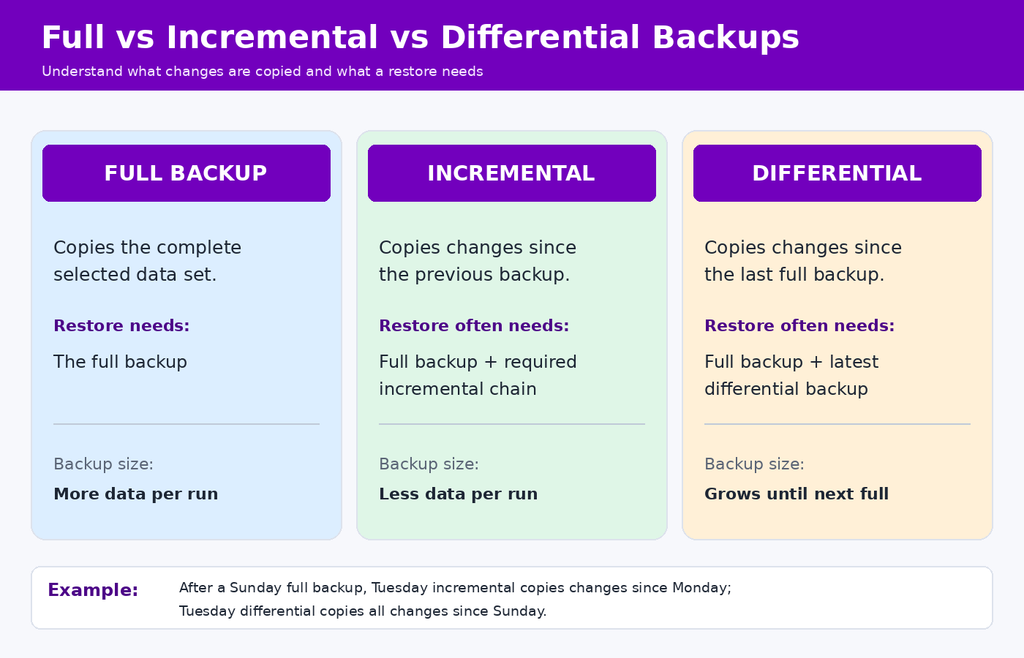
35. What is the difference between incremental and differential backups?
Answer: Both incremental and differential backups copy changed data after a full backup, but they use different reference points.
- Incremental backup: Usually copies data changed since the most recent relevant backup, which may be a full or incremental backup.
- Differential backup: Usually copies data changed since the most recent full backup.
Consider a system that receives a full backup on Sunday and then has files modified during the week.
| Day | Incremental Backup | Differential Backup |
|---|---|---|
| Sunday | Full backup | Full backup |
| Monday | Changes since Sunday | Changes since Sunday |
| Tuesday | Changes since Monday’s backup | All changes since Sunday’s full backup |
| Wednesday | Changes since Tuesday’s backup | All changes since Sunday’s full backup |
To restore data from a traditional incremental backup chain, the full backup and the required subsequent incremental backups may be needed. For a traditional differential backup, restoration generally requires the full backup and the latest relevant differential backup.
Interview tip: Incremental backups often reduce the amount of data copied during each backup operation, while differential backups may simplify restoration. The exact storage and recovery behaviour depends on the backup software, backup type and retention configuration.
36. What is the difference between a Domain Controller (DC) and an Additional Domain Controller (ADC)?
Answer: A Domain Controller (DC) is a server running Active Directory Domain Services that stores directory information and provides services such as authentication and directory access.
An Additional Domain Controller (ADC) is an informal term commonly used to describe another domain controller added to an existing domain. It is not a separate modern Active Directory server role with a fundamentally different authentication model.
In modern Active Directory, writable domain controllers generally use multi-master replication, allowing supported directory changes to be replicated between them. This differs from the older primary and backup domain controller terminology associated with Windows NT.
Organisations deploy multiple domain controllers to improve availability and support authentication across locations.
For example, if one domain controller becomes unavailable, another suitable and reachable domain controller may continue to provide authentication and directory services. The outcome depends on the environment, replication health, network connectivity and availability of required services.
Interview tip: An additional writable domain controller does not automatically become a secondary, read-only copy. Active Directory also supports Read-Only Domain Controllers (RODCs), which have different replication and credential-handling behaviour.
37. What is the difference between RAM and ROM?
Answer: RAM (Random Access Memory) is the working memory used to hold data and instructions needed by running programs and the operating system. Conventional system RAM is volatile, so its contents are lost when power is removed.
ROM (Read-Only Memory) traditionally refers to non-volatile memory containing information that remains available without continuous power.
| Feature | RAM | ROM |
|---|---|---|
| Primary Purpose | Holds active data and program instructions | Historically stores firmware or fixed program information |
| Data Retention | Conventional system RAM loses data without power | Non-volatile |
| Modification | Designed for frequent read and write operations | Traditionally read-only or modified using specialised methods |
| Typical Context | Operating system and application memory | Firmware and embedded systems |
Modern computers commonly store UEFI firmware in rewritable non-volatile flash memory rather than traditional fixed ROM. RAM, firmware storage and SSD storage serve different purposes.
Practical example: If a Windows computer becomes slow while several applications are open, a desktop support engineer may check RAM usage in Task Manager. High memory pressure can affect performance, but the engineer should also investigate CPU, storage and application behaviour rather than assume RAM is the only cause.
Interview tip: Do not confuse system RAM with permanent storage. An SSD retains stored files without power, while conventional RAM does not.
38. What is the difference between straight-through and crossover Ethernet cables?
Answer: A straight-through Ethernet cable uses the same wiring scheme at both ends. A crossover Ethernet cable uses a different arrangement at each end to swap the relevant transmit and receive pairs for certain Ethernet connection types.
For traditional twisted-pair Ethernet connections, the T568A and T568B wiring arrangements are commonly referenced.
- Straight-through cable: Uses the same wiring arrangement at both ends, such as T568B to T568B.
- Crossover cable: Traditionally uses T568A at one end and T568B at the other for relevant 10/100 Mbps Ethernet connections.
Historically, a straight-through cable was commonly used between a computer and switch, while a crossover cable was used for certain connections between similar devices.
However, many modern Ethernet network interfaces support Auto MDI-X, which automatically adjusts to the connection. This often removes the need to select a crossover cable manually.
Interview tip: Before replacing a cable, check the link indicator, network adapter status, switch port and cable condition. A failed connection can result from several factors besides the wiring arrangement.
39. How do you join a Windows computer to an Active Directory domain?
Answer: A Windows computer can be joined to an on-premises Active Directory domain if the device runs a supported Windows edition, can reach the required directory services and the joining process uses authorised credentials.
Before joining the computer, check the following:
- Windows edition: Confirm that the installed edition supports Active Directory domain joining. Windows Home editions do not support the conventional AD domain-join feature.
- Network connectivity: Verify access to the organisation’s network and required domain services.
- DNS configuration: Confirm that the computer can resolve the required Active Directory domain and service records.
- Computer name: Check the organisation’s naming standard and ensure there is no conflicting device identity.
- Authorisation: Use an account permitted to join the device and follow the employer’s device enrolment procedures.
On supported Windows editions, the traditional domain-join interface can be opened through System Properties:
sysdm.cplOpen the Computer Name tab, select Change, choose the domain membership option and enter the required domain name. Provide authorised credentials when prompted and restart the computer if required.
After joining, verify that the device can authenticate a permitted domain user, resolve domain resources and receive applicable configurations. The organisation may also use automated provisioning or other approved domain-join workflows.
Troubleshooting example: If the domain cannot be found, check the DNS server addresses, network access, domain controller availability and relevant DNS records. If the join is denied, review the account’s permissions, device naming and any applicable joining restrictions.
Interview tip: Joining an on-premises Active Directory domain is different from joining a device to Microsoft Entra ID. Explain which identity environment the employer uses before describing the procedure.
40. What is the tracert command used for?
Answer: The tracert command is a Windows network diagnostic utility that helps identify the route packets take towards a destination. It displays information about intermediate routers, commonly called hops, when those devices provide the expected responses.
Windows tracert uses ICMP echo requests with increasing Time to Live (TTL) values for IPv4 or corresponding hop-limit behaviour for IPv6. This allows intermediate devices to reveal their positions along the observed path when they respond.
For example:
tracert example.com
tracert -d 8.8.8.8
The first command attempts to trace the route to the specified hostname. The -d option prevents reverse DNS resolution of the intermediate IP addresses, which can make the output faster and easier to review.
Practical example: If an employee can access local network resources but cannot reach a service hosted on another network, a desktop support engineer may use tracert to gather information about the apparent network path. The findings can help the network team investigate routing or connectivity problems.
Important limitation: An asterisk or timeout at a hop does not necessarily mean that the router has failed. Some network devices do not respond to diagnostic traffic, and others limit the rate of their responses. A traceroute also does not confirm that the intended application service is available.
Interview tip: Use ping to investigate basic ICMP reachability and tracert to examine the responding hops along a route. For an application that depends on a specific TCP port, additional authorised connectivity checks may be required.
Practical Desktop Support and Troubleshooting Interview Questions (41–44)
Practical desktop support questions assess how candidates investigate technical problems, communicate with users and apply solutions without creating unnecessary risks. Interviewers may ask for an example from previous work or describe a hypothetical situation involving a Windows computer, network connection or workplace application.
A useful troubleshooting answer should explain how you identify the symptoms, isolate possible causes, perform authorised checks, apply a suitable fix and verify the result. If the issue cannot be resolved within your responsibilities, explain how you would escalate it.
41. Have you trained employees to use computer systems or workplace software?
Answer: Desktop support engineers may help employees understand software, device settings, security requirements and basic troubleshooting procedures. The interviewer wants to know whether you can explain technical information to users with different levels of experience.
Sample answer for experienced candidates: “I have helped employees with common IT tasks such as signing in to workplace applications, using approved collaboration tools and resolving routine software problems. I begin by understanding what the employee needs to accomplish, demonstrate the relevant steps and explain what to do if the same issue occurs again. I also check that the employee can complete the task independently before closing the support request.”
Sample answer for freshers: “I have not formally trained employees in a workplace, but I have helped classmates understand software installation, basic network settings and computer troubleshooting. I try to explain each step clearly and allow the other person to perform the task so I can confirm they understand it.”
Interview tip: Mention the actual software or technical procedure you have explained. If the question concerns workplace training, distinguish formal employee training from helping classmates or colleagues informally.
42. Which processor families are commonly used in modern desktop and laptop computers?
Answer: Desktop and laptop computers use processors from different manufacturers and architectures. Common examples include Intel Core and Core Ultra, AMD Ryzen and Ryzen PRO, Apple silicon and Qualcomm Snapdragon processors used in certain Windows devices.
| Processor Family | Common Context |
|---|---|
| Intel Core and Core Ultra | Windows desktops, laptops and enterprise workstations |
| AMD Ryzen and Ryzen PRO | Consumer and business desktops and laptops |
| Apple silicon | Mac computers using Apple’s processor architecture |
| Qualcomm Snapdragon | Selected Windows computers based on ARM architecture |
Processor models differ in architecture, core count, clock behaviour, power requirements, graphics capabilities and supported features. Software and driver compatibility also matter, particularly when comparing traditional x86-64 Windows devices with ARM-based systems.
How to check a Windows processor: Open Task Manager > Performance > CPU or use Windows System Information.
msinfo32Interview tip: Instead of memorising a list of current processor models, explain how you would identify a processor, check compatibility and investigate performance problems. Processor branding alone does not determine whether a computer is suitable for a specific application.
43. How would you troubleshoot a Windows computer that is running slowly?
Sample Answer: “I would first ask when the slowdown started, whether it affects the entire computer or particular applications and whether any recent changes were made. I would then investigate system resource usage and look for evidence of the cause before applying a fix.”
My troubleshooting process would include:
- Confirm the symptoms: Ask whether the computer is slow during startup, application use, file access or network activity. Determine whether other users or devices are affected.
- Check resource usage: Open Task Manager and examine CPU, memory, disk and process activity. Identify applications or services consuming unusually high resources.
- Review storage: Check free disk space, storage health and signs of drive-related performance problems. Avoid deleting user files without authorisation.
- Investigate recent changes: Review newly installed applications, startup programs, device drivers, Windows updates and relevant system events.
- Check security status: Review endpoint protection alerts and investigate potential malware through the organisation’s approved security procedures.
- Apply an appropriate fix: Make only authorised changes based on the findings. A restart, application repair, update correction or hardware investigation may be appropriate depending on the cause.
- Verify and document: Confirm that performance has improved under the conditions that originally caused the problem. Record the symptoms, diagnosis, action taken and result in the support ticket.
Practical example: If Task Manager shows that memory use becomes very high whenever several business applications are open, I would check the device’s installed RAM, application requirements and background processes. I would not immediately recommend a RAM upgrade without ruling out abnormal software behaviour or other causes.
If the issue affects several employees simultaneously, I would investigate whether a shared application, recent update, network service or enterprise policy is involved rather than assume each computer has a separate hardware problem.
Interview tip: A strong troubleshooting answer explains why each check is performed. Avoid presenting disk cleanup, driver updates or reinstalling Windows as automatic fixes for every slow computer. Reinstallation can affect user data and business applications and should follow the employer’s approved process.
44. What are browser cookies, and how can they affect troubleshooting?
Answer: Browser cookies are small pieces of data that websites can ask a browser to store and send with relevant requests. They are commonly used to maintain login sessions, remember preferences and support website functionality.
Some cookies are required for a website to work correctly, while others support analytics, personalisation or advertising. Cookies may contain session identifiers and other information that should be protected against unauthorised access.
Desktop support example: An employee reports that an internal web application repeatedly signs them out or displays an unexpected session error. After checking whether the service is available and whether other employees have the same problem, I might investigate browser settings, extensions, cached website data and cookies associated with that application.
Clearing relevant site cookies may resolve certain session-related problems, but it can also sign the user out and remove stored preferences. Before making changes, I would explain the effect and follow the company’s support procedure.
Interview tip: Cookies and browser cache are related but different. Cache commonly stores reusable resources such as images or scripts, while cookies store small pieces of state used in website interactions. Clearing all browser data should not be the first response to every website problem.
HR Interview Questions for Desktop Support Engineers (45–50)
HR interviews assess how candidates communicate, work with colleagues, handle feedback and approach their responsibilities. The answers below are examples rather than statements you should memorise word for word. Adapt them to your education, employment history and the position you are applying for.
45. Tell me about yourself.
Sample answer for freshers: “I have studied Information Technology and developed an interest in Windows administration, computer networking and hardware troubleshooting. During my practical training, I worked on operating system installation, network configuration and resolving common software problems. I enjoy investigating technical issues and explaining solutions clearly, which is why I am interested in starting my career in desktop support.”
Sample answer for experienced candidates: “I have experience supporting workplace computers, user accounts and business applications. My responsibilities have included diagnosing Windows issues, resolving connectivity problems, documenting incidents and coordinating with other IT teams when escalation was needed. I am now looking for a role where I can use that experience and take on more complex technical responsibilities.”
Interview tip: State your actual qualification, years of experience and technologies used. If you mention an achievement, make sure you can explain your contribution and the result. A short introduction is more useful than repeating your entire resume.
46. Why did you choose a career in desktop support?
Sample Answer: “I chose desktop support because I enjoy understanding how computer systems work and solving problems that prevent people from completing their tasks. The role gives me the opportunity to work with operating systems, hardware, networks and workplace applications. I also value the customer-service aspect because a technical solution is most useful when the employee understands what was done and can resume work.”
Interview tip: Explain what attracts you to the actual work. If you are interested in progressing towards endpoint administration, networking or infrastructure support, you can mention that as a longer-term goal without suggesting that desktop support is only a temporary position.
47. What is your biggest weakness?
Sample Answer: “Earlier, I sometimes spent too much time investigating a problem independently before asking for help. I realised that this could delay resolution, particularly when an issue required specialist knowledge. I have been working on documenting my troubleshooting steps, setting reasonable time limits and escalating issues when appropriate.”
Interview tip: Choose a genuine weakness you are actively addressing. Avoid claiming that you have no weaknesses or selecting an example that suggests you regularly ignore security procedures, mishandle confidential information or conceal unresolved incidents.
48. What are your salary expectations?
Sample Answer: “I would like a salary that reflects the responsibilities of the position, the skills required and my experience. I have been reviewing compensation for comparable desktop support roles in this location and would be comfortable discussing a suitable range once I understand the complete role and benefits.”
Interview tip: Research a realistic salary range for the specific city, experience level, support shift and employment arrangement. If the interviewer asks for a number, be prepared to provide a researched range rather than avoiding the question entirely.
When evaluating an offer, also check whether compensation includes shift allowances, on-call payments, variable incentives or other benefits, where applicable. Do not assume these components are included in every desktop support position.
49. Why should we hire you as a desktop support engineer?
Sample Answer: “I can contribute a structured troubleshooting approach, technical knowledge and clear communication with users. When someone reports a problem, I try to understand the symptoms before making changes, investigate the most likely causes and verify that the solution works. I also understand the importance of documenting incidents, protecting user information and escalating issues that require additional expertise.”
Interview tip: Connect your answer to the vacancy. If the position requires Windows 11 troubleshooting, Active Directory account support or Microsoft 365 administration, mention the experience you genuinely have with those technologies. Support your answer with an example when possible.
50. Do you have any questions for us?
Answer: Yes. Asking relevant questions can help you understand the support environment, responsibilities and expectations before accepting the position.
Suitable questions include:
- Which operating systems and endpoint management platforms does the desktop support team use?
- What are the most common issues handled by the L1 or L2 support team?
- Which ticketing platform does the organisation use, and how are incidents prioritised?
- How are unresolved issues escalated to network, infrastructure or application support teams?
- Does the role involve rotational shifts, on-site support, remote assistance or on-call responsibilities?
- What technical training and performance expectations apply during the first three months?
Interview tip: Select two or three questions that have not already been answered. Prioritise information that helps you understand the actual support responsibilities, working arrangements and technical environment.
How to Prepare for a Desktop Support Interview
Desktop support interviews often combine technical definitions with questions about practical troubleshooting. Before attending the interview, revise the subjects most relevant to the job description and practise explaining how you would investigate a reported issue.
- Practise Windows commands: Be able to explain what
ipconfig,ping,nslookup,tracertand common Windows administration utilities do. Understand their limitations rather than only memorising syntax. - Revise networking fundamentals: Review IP addressing, subnet masks, default gateways, DNS, DHCP, Wi-Fi and common causes of connectivity failures.
- Understand user account administration: Know the purpose of Active Directory, security groups, permissions, password resets and account lockouts. Be aware of the difference between on-premises Active Directory and Microsoft Entra ID.
- Prepare troubleshooting examples: Practise investigating a slow computer, printer problem, login failure, Outlook issue or network interruption. Explain the checks you would make and why.
- Review support procedures: Understand ticket documentation, incident priority, escalation, SLAs, user communication and handling of confidential information.
- Describe your actual experience: Prepare examples from work, internships, practical training or home labs. Identify which tools you used and what you achieved without overstating your responsibilities.
For L1 interviews, concentrate on diagnosing common computer and user problems. L2 candidates should also prepare for more complex Windows, identity, application and endpoint-management issues. Specialist or L3 positions may require deeper infrastructure knowledge than is covered by a general desktop support question list.
Conclusion
Preparing for a desktop support engineer interview involves understanding how workplace computers, operating systems, networks and user accounts function. Employers may expect you to explain common technical concepts and demonstrate how you would diagnose problems safely and systematically.
Use these 50 desktop support interview questions and answers to revise Windows administration, networking, Active Directory, computer hardware, troubleshooting and HR topics. Practise the relevant commands, prepare genuine examples and explain how you would confirm that an issue has been resolved before closing a support ticket.
FAQs
Common questions cover Windows operating systems, IP addresses, DNS, DHCP, Active Directory, computer hardware and troubleshooting. Interviewers may also ask how you would resolve login errors, slow computers or network connectivity problems.
Freshers should revise computer hardware, Windows settings, networking basics and commands such as ping, ipconfig and nslookup. Practise explaining troubleshooting steps and prepare examples from internships, technical training or personal projects.
L1 support usually handles initial diagnosis, routine technical problems and ticket documentation. L2 support investigates more complex operating system, application, network and access issues. Responsibilities vary between employers.
Important commands include ipconfig for IP configuration, ping for basic connectivity testing, nslookup for DNS queries and tracert for network path diagnostics. Candidates should understand what each command tests and its limitations.
Desktop support engineers need knowledge of operating systems, computer hardware, networking, software troubleshooting and user account management. Communication, incident documentation, security awareness and systematic problem-solving are also important.

 Beware of Scammers
